
How to Crop Flipkart Shipping Labels for Thermal Printers (Complete Seller Guide)
If you’re a Flipkart seller, warehouse operator, or packing executive, you’ve probably faced problems printing shipping labels correctly.
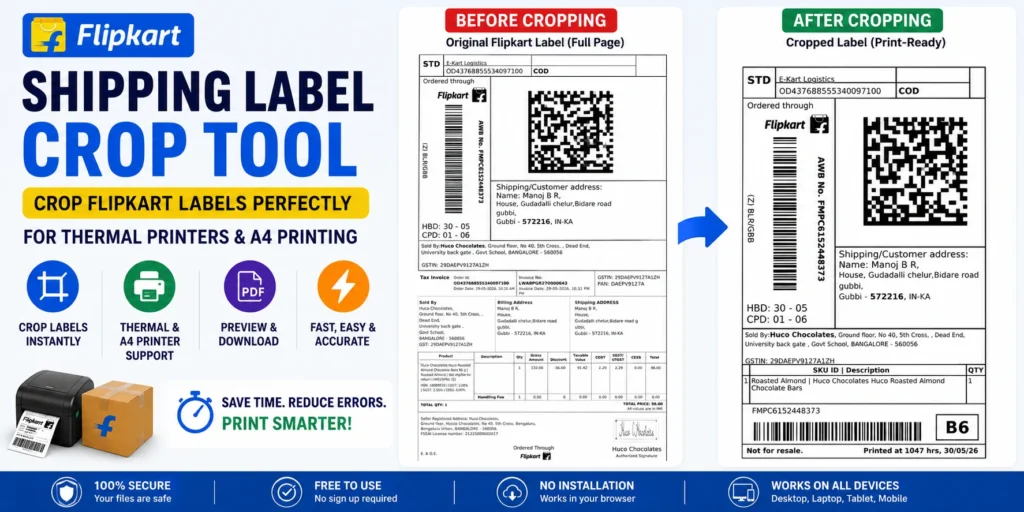
Many Flipkart labels contain additional information, extra margins, or layouts that don’t fit properly on thermal printers.
This is where a Flipkart Shipping Label Crop Tool becomes extremely useful.
Instead of manually editing PDFs, taking screenshots, or wasting label sheets, sellers can quickly crop Flipkart shipping labels and prepare them for:
- Thermal printers
- Label printers
- A4 printing
- Bulk order processing
In this guide, you’ll learn how to crop Flipkart labels correctly, avoid common printing mistakes, and speed up your packing workflow.
Why Sellers Need a Flipkart Shipping Label Crop Tool
Many sellers print hundreds of labels every week.
Common problems include:
- Extra white margins
- Wrong printer sizing
- Misaligned labels
- Thermal printer cut-off issues
- Wasted label rolls
- Slow manual editing
Using a dedicated Flipkart Shipping Label Crop Tool helps eliminate these issues and ensures consistent printing.
What Is a Flipkart Shipping Label Crop Tool?
A Flipkart Shipping Label Crop Tool is designed to automatically extract and prepare the shipping label portion from Flipkart-generated PDFs.
Instead of editing files manually, sellers can:
- Upload label PDF
- Choose printer type
- Preview output
- Download print-ready label
The process takes only a few seconds.
How to Crop Flipkart Shipping Labels
Step 1: Download Label PDF
Login to your Flipkart Seller Dashboard.
Download the shipping label PDF for your orders.
Official Seller Portal:
Step 2: Open the Flipkart Shipping Label Crop Tool
Use:
Flipkart Shipping Label Crop Tool
Upload your PDF file.
Step 3: Choose Printer Type
The tool supports:
Label Printer Mode
Best for:
- Thermal printers
- Shipping label rolls
- Barcode labels
A4 Printer Mode
Best for:
- Laser printers
- Inkjet printers
- A4 paper sheets
Select the option that matches your setup.
Step 4: Preview the Label
The tool automatically generates a preview.
Check:
- Barcode visibility
- Address clarity
- QR codes
- Tracking information
Step 5: Download the Output
Click:
Prepare Shipping Labels
Download the optimized PDF.
Print immediately.
Benefits of Using a Flipkart Label Crop Tool
Faster Packing
Reduce manual editing work.
Better Barcode Scanning
Correctly cropped labels improve scan success rates.
Save Label Rolls
Avoid unnecessary reprints.
Fewer Packing Errors
Clear labels reduce shipment mistakes.
Better Warehouse Productivity
Packing teams process more orders per hour.
Thermal Printer vs A4 Printer
Thermal Printer
Recommended for:
- High order volume
- Daily shipments
- Ecommerce warehouses
Advantages:
- Faster printing
- No ink required
- Lower operating costs
A4 Printer
Recommended for:
- Small sellers
- New businesses
- Low order volumes
Advantages:
- No special printer required
- Easy setup
- Suitable for occasional orders
Common Flipkart Label Printing Problems
Barcode Cut Off
Occurs when label dimensions don’t match printer settings.
Label Printed Too Small
Wrong scaling settings can reduce readability.
Address Missing
Incorrect cropping can hide address details.
Blank Pages
PDF settings may cause empty pages.
Wasted Label Rolls
Incorrect formatting wastes labels and increases costs.
Best Practices for Flipkart Sellers
Before printing:
✔ Verify barcode visibility
✔ Verify QR code visibility
✔ Use print preview
✔ Use proper printer mode
✔ Test first label before bulk printing
These simple checks reduce shipping errors significantly.
Flipkart Seller Workflow Example
A seller receives:
- 50 orders
- Shipping label PDF
Without crop tool:
- Manual editing
- Screenshots
- Cropping
- Printing
Time required:
20–30 minutes
With Flipkart Shipping Label Crop Tool:
- Upload PDF
- Select printer
- Download
Time required:
Less than 1 minute
Official Resources
Flipkart Seller Hub
Flipkart Support
GST Portal
Crop Flipkart Labels in Seconds
Prepare clean shipping labels for thermal printers and A4 printers without manual editing. Upload your PDF, preview the output and download print-ready labels instantly.
Use Flipkart Shipping Label Crop ToolFrequently Asked Questions
What does the Flipkart Shipping Label Crop Tool do?
It automatically crops and prepares Flipkart shipping labels for thermal printers and A4 printing.
Can I use it with thermal printers?
Yes. The tool supports dedicated label printer output.
Does the tool modify my original PDF?
No. Your original PDF remains unchanged.
Can I crop multiple labels?
Yes, depending on the uploaded PDF structure.
Is the tool free?
Yes. The Flipkart Shipping Label Crop Tool is available free online.
Can I use it on mobile?
Yes. The tool works on desktop and mobile browsers.