
Remove Background from Image Online Free – Complete Guide
If you want to remove background from image online, you no longer need Photoshop, complex editing software, or manual cutout skills.
Whether you are creating product photos, profile images, social media graphics, ID-style images, thumbnails, logos, or ecommerce listing photos, a background remover tool can help you create a clean transparent PNG in seconds.
In this guide, you’ll learn how to remove image backgrounds online, when to use transparent background, when to use white background, common mistakes to avoid, and how to get the best result using our free AI Background Remover Tool.
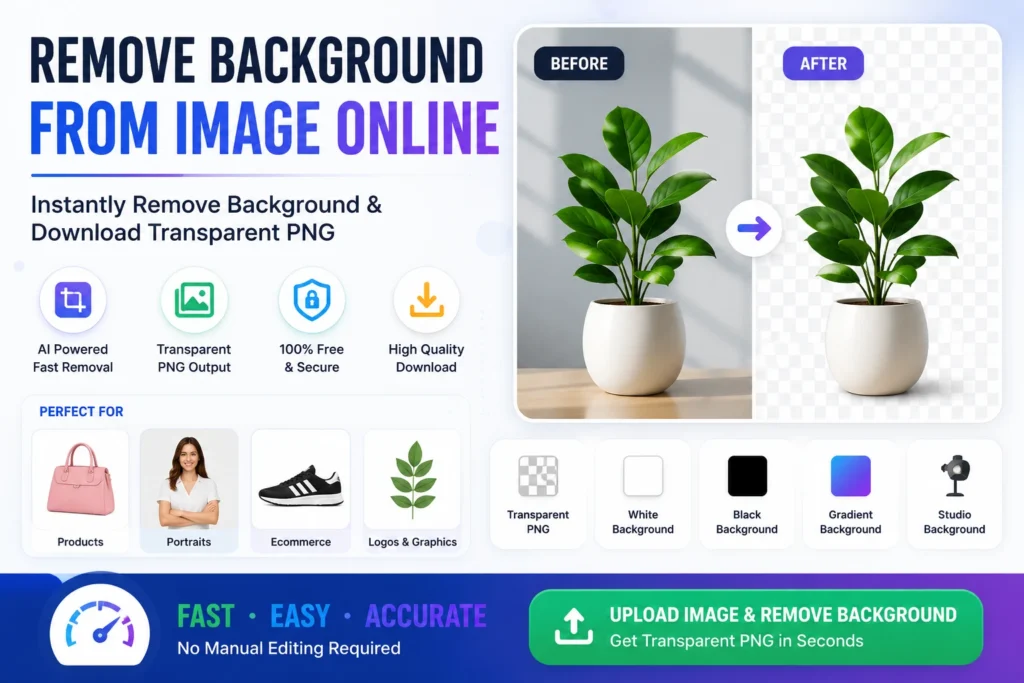
What Is an Online Background Remover?
An online background remover is a tool that detects the main subject in your image and removes the unwanted background.
Instead of manually selecting edges, erasing pixels, or masking objects, the tool automatically separates the subject from the background.
This is useful for:
- Product photos
- Portrait photos
- Logo images
- Ecommerce images
- Social media designs
- YouTube thumbnails
- Business graphics
- Profile pictures
A good background remover helps you save time and create cleaner images without advanced editing knowledge.
Why Remove Background from Image Online?
There are many reasons people remove backgrounds from images.
Cleaner Product Photos
Ecommerce platforms often prefer clean product images with white or transparent backgrounds.
Better Social Media Graphics
Transparent images are easier to place on posters, banners, thumbnails, and reels.
Professional Profile Photos
A clean background makes profile images look more polished.
Easy Design Editing
Transparent PNG images can be used in Canva, Photoshop, Figma, PowerPoint, and website designs.
Faster Workflow
Instead of editing manually, you can upload, preview, and download the result quickly.
How to Remove Background from Image Online
Follow these simple steps.
Step 1: Open the Background Remover Tool
Use our free tool: AI Background Remover Tool
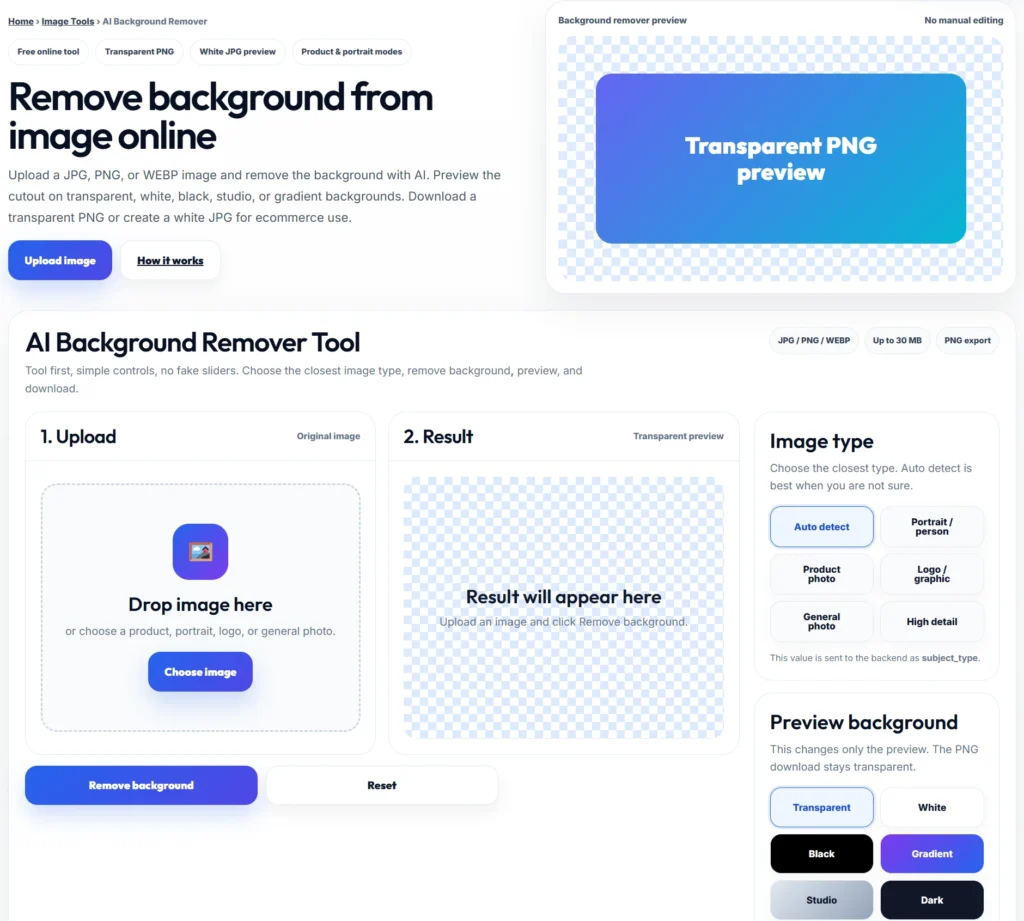
Step 2: Upload Your Image
Upload a JPG, PNG, or WEBP image.
You can use:
- Product photos
- Portrait photos
- Logo images
- General images
- Ecommerce photos
For best results, choose a clear image where the subject is visible.
Step 3: Choose Image Type
Select the closest image type:
- Auto Detect
- Portrait / Person
- Product Photo
- Logo / Graphic
- General Photo
- High Detail
If you are not sure, use Auto Detect.
Step 4: Remove the Background
Click the remove background button.
The tool will process your image and generate a cutout preview.
Step 5: Preview the Result
Check the result carefully.
Make sure:
- Subject edges look clean
- Important details are not removed
- Background is properly transparent
- Product shape is preserved
Step 6: Download Transparent PNG
Download the final image as a transparent PNG.
You can also preview how the image looks on different backgrounds like white, black, studio, gradient, or dark mode.
Transparent PNG vs White Background
When you remove background from image online, you usually have two common output choices.
Transparent PNG
Best for:
- Graphic design
- Logos
- Product cutouts
- Website images
- Social media posts
- Thumbnails
A transparent PNG allows you to place the subject on any background.
White Background
Best for:
- Ecommerce listings
- Product catalogs
- Marketplace uploads
- Clean business images
White background is commonly used for product photos because it looks clean and professional.
Best Uses of Background Remover Tool
Ecommerce Product Photos
Online sellers can use background removal to create cleaner product photos.
Useful for:
- Amazon listings
- Flipkart listings
- Shopify stores
- Meesho products
- Website product catalogs
Clean product photos can improve presentation and customer trust.
Portrait and Profile Photos
You can remove the background from portrait photos and place the subject on a clean background.
Useful for:
- Resume photos
- LinkedIn profile photos
- Business profile images
- Team member photos
- Social media profile pictures
Logos and Graphics
If you have a logo with an unwanted background, removing it can help you create a reusable transparent logo.
Useful for:
- Website headers
- Posters
- Branding
- Presentations
- Watermarks
Social Media Content
Transparent PNG images are useful for creating:
- Instagram posts
- YouTube thumbnails
- Facebook banners
- Pinterest graphics
- LinkedIn posts
- Promotional creatives
Common Mistakes to Avoid
Using Blurry Images
If your original image is blurry, the final cutout may not look clean.
Use sharp images whenever possible.
Uploading Low-Contrast Photos
If the subject and background have similar colors, background removal may be harder.
Try using images where the subject clearly stands out.
Expecting Perfect Results for Complex Hair or Fur
Hair, fur, glass, smoke, and transparent objects can be difficult for any background remover.
Use the High Detail mode when the image has complex edges.
Downloading Without Previewing
Always preview the result before downloading.
Check the edges, product shape, and small details.
Using the Wrong Image Type
For product images, choose Product Photo.
For people, choose Portrait / Person.
This helps the tool process the image better.
Background Remover for Ecommerce Sellers
For ecommerce sellers, product image quality matters a lot.
A clean product image can make your listing look more professional and trustworthy.
If you sell on Amazon, Flipkart, Meesho, Shopify, or your own website, background removal can help you create consistent product images.
You can use the tool to:
- Remove distracting backgrounds
- Create white background product photos
- Prepare clean product cutouts
- Improve catalog presentation
- Create promotional banners
For marketplace sellers, this can save time compared to manual editing.
Background Remover for Creators and Designers
Creators can use transparent PNG images in many ways.
For example:
- Add a person cutout into a thumbnail
- Place a product on a colorful background
- Create Instagram carousel graphics
- Make posters and banners
- Build website hero images
- Create Pinterest pins
The transparent PNG format gives more flexibility during design.
Best Practices for Better Results
Before uploading your image:
- Use good lighting
- Keep subject clearly visible
- Avoid heavy shadows
- Use high-resolution images
- Keep the subject away from busy backgrounds
- Choose the correct image type
After processing:
- Preview on transparent background
- Preview on white background
- Check edges carefully
- Download PNG for transparent output
These simple steps can help you get a cleaner result.
Try Our AI Background Remover Tool
Remove Image Background in Seconds
Upload your JPG, PNG, or WEBP image and remove the background online. Preview the cutout on transparent, white, black, studio, or gradient backgrounds and download a clean transparent PNG.
Open AI Background Remover ToolRelated Tools
Official Image Resources
If you’d like to learn more about image formats, transparency, PNG files, and product image requirements, these official resources can help:
MDN Web Docs – Image File Types
https://developer.mozilla.org/en-US/docs/Web/Media/Formats/Image_types
Learn about JPG, PNG, WEBP, SVG, GIF, and other image formats commonly used on websites and applications.
Google Merchant Center – Product Image Requirements
https://support.google.com/merchants/answer/6324350
Official Google guidelines for product images used in ecommerce listings and Google Shopping.
Adobe Help – Image File Formats
https://helpx.adobe.com/photoshop/using/file-formats.html
Adobe’s official guide explaining image file formats, transparency, compression, and image quality considerations.
These resources provide additional information about image optimization, transparent backgrounds, ecommerce product photography, and digital image formats.
Frequently Asked Questions
How can I remove background from image online?
Upload your image to an online background remover tool, process the image, preview the result, and download the transparent PNG.
Can I remove background from product photos?
Yes. Product photos are one of the most common uses of background remover tools.
Can I download the image as transparent PNG?
Yes. Transparent PNG is ideal for designs, product cutouts, logos, thumbnails, and website images.
Can I use a white background instead of transparent?
Yes. A white background is useful for ecommerce listings and clean product images.
Does background remover work for portraits?
Yes. Portrait photos usually work well, especially when the subject is clear and the background is not too complex.
Which image formats are supported?
Most online background remover tools support JPG, PNG, and WEBP formats.
Is background removal useful for ecommerce sellers?
Yes. Ecommerce sellers can use it to create cleaner product images for Amazon, Flipkart, Shopify, Meesho, and website catalogs.
Why does my image cutout look rough?
This can happen if the image is blurry, low-quality, low-contrast, or has complex edges like hair, fur, or glass.
Final Thoughts
Learning how to remove background from image online can save a lot of editing time.
Whether you are an ecommerce seller, designer, content creator, student, business owner, or social media manager, a background remover tool helps you create clean, professional images quickly.
For best results, always use a clear image, choose the correct image type, preview the output, and download the transparent PNG only after checking the edges.
Use our free AI Background Remover Tool whenever you need a clean image cutout without manual editing.